
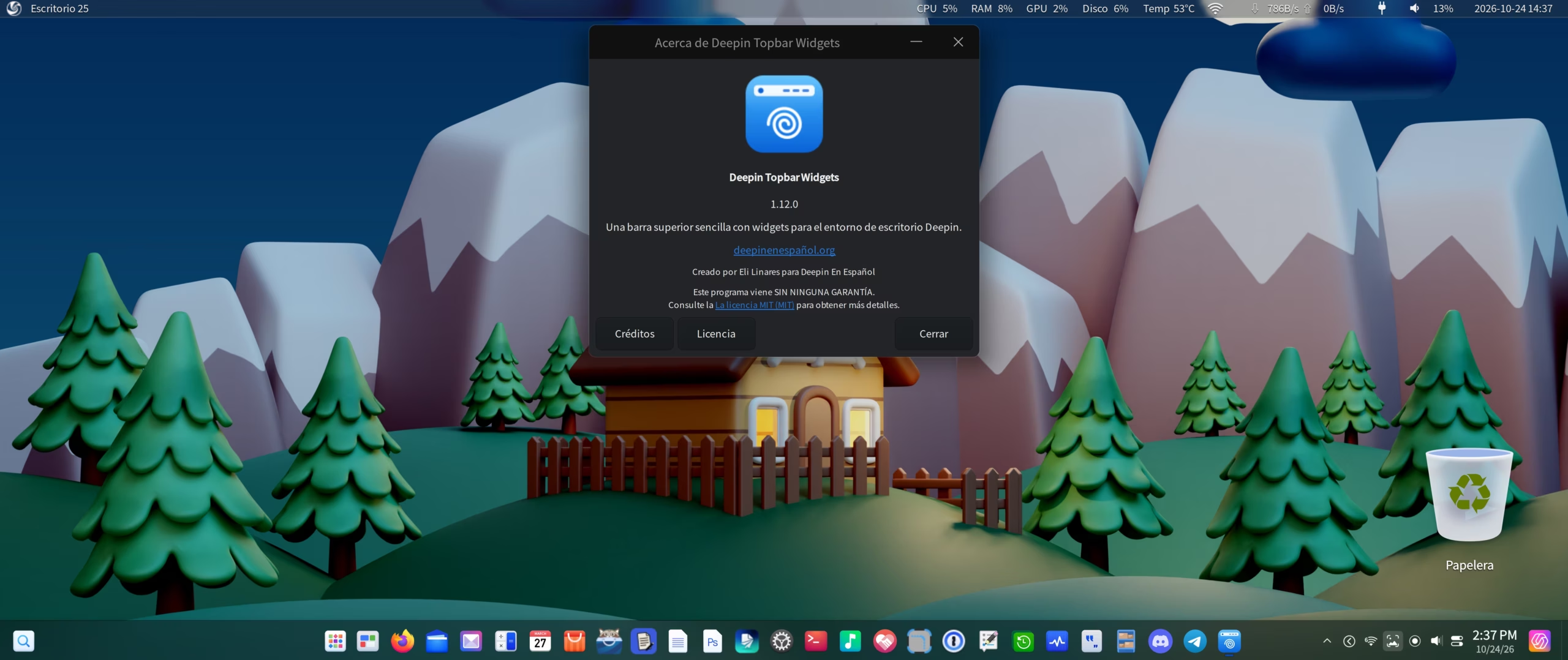
Deepin Topbar Widgets
A Topbar For Deepin OS
Deepin Topbar Widgets is a handy top-bar application that sits at the top of your screen and monitors your system using mini-widgets. It displays real-time data such as CPU and GPU usage, internet upload and download speeds, CPU and GPU temperatures, battery health, power source indicators, and Ethernet/Wi-Fi connection statuses, among other metrics. Since Deepin Linux doesn’t natively include a top bar, Deepin Topbar Widgets brings this popular feature—found in other Linux distributions and operating systems like macOS—straight to your desktop.
The app features a sleek blur effect that blends seamlessly with Deepin’s native transparency, ensuring it looks right at home within the Deepin Desktop Environment (DDE).
Years ago, we had a similar project called “Deepin Topbar,” which was eventually abandoned and hasn’t been updated since 2018. Deepin Topbar Widgets steps in to fill that void for fans of the original tool. It was designed and built specifically for Deepin OS and has not been tested on other distributions.
The app automatically displays in Spanish if your system language is set to Spanish, and defaults to English on all other systems. Support for additional languages is planned for future releases.
Main Features
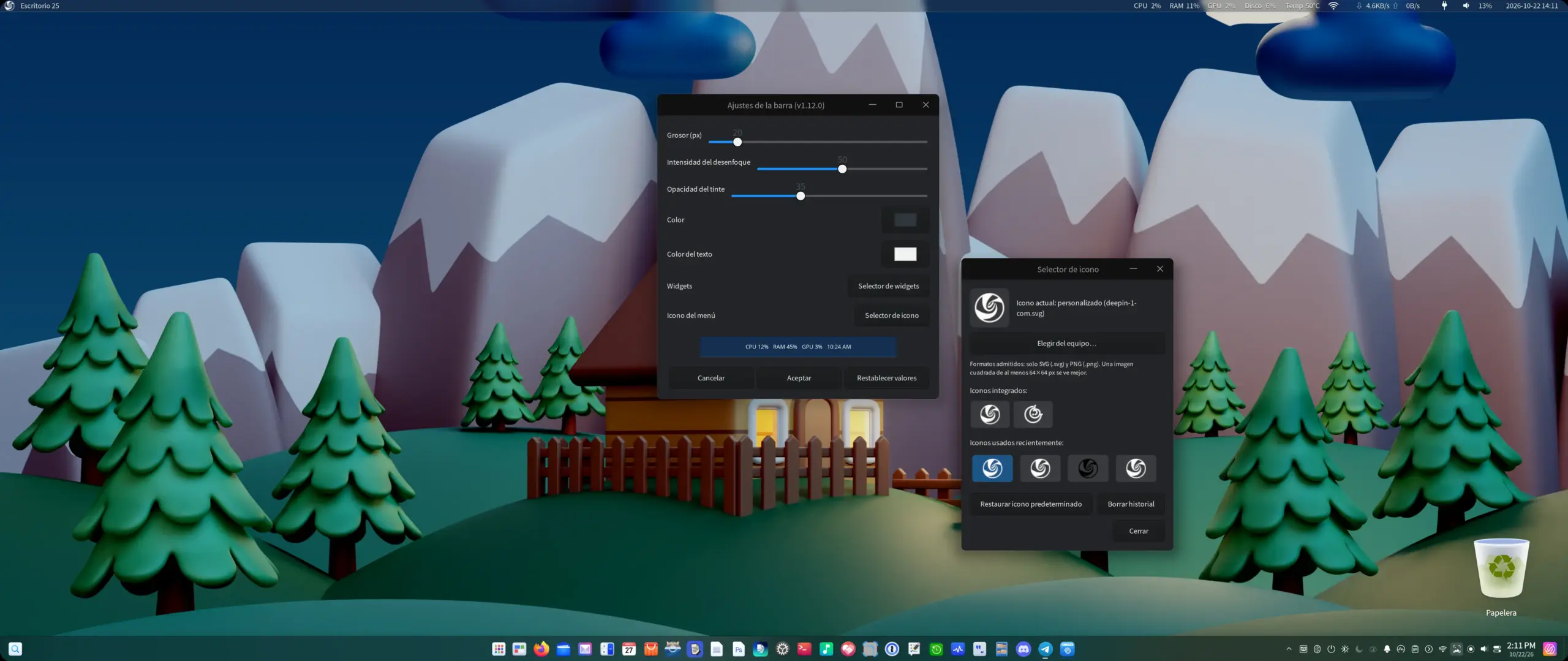
Once installed and launched, you get instant access to all the system vitals mentioned above, with the freedom to toggle individual indicators on or off. Deepin Topbar Widgets is set to launch automatically at startup by default. To customize its initial settings, simply look for its new icon in your application launcher after installation.
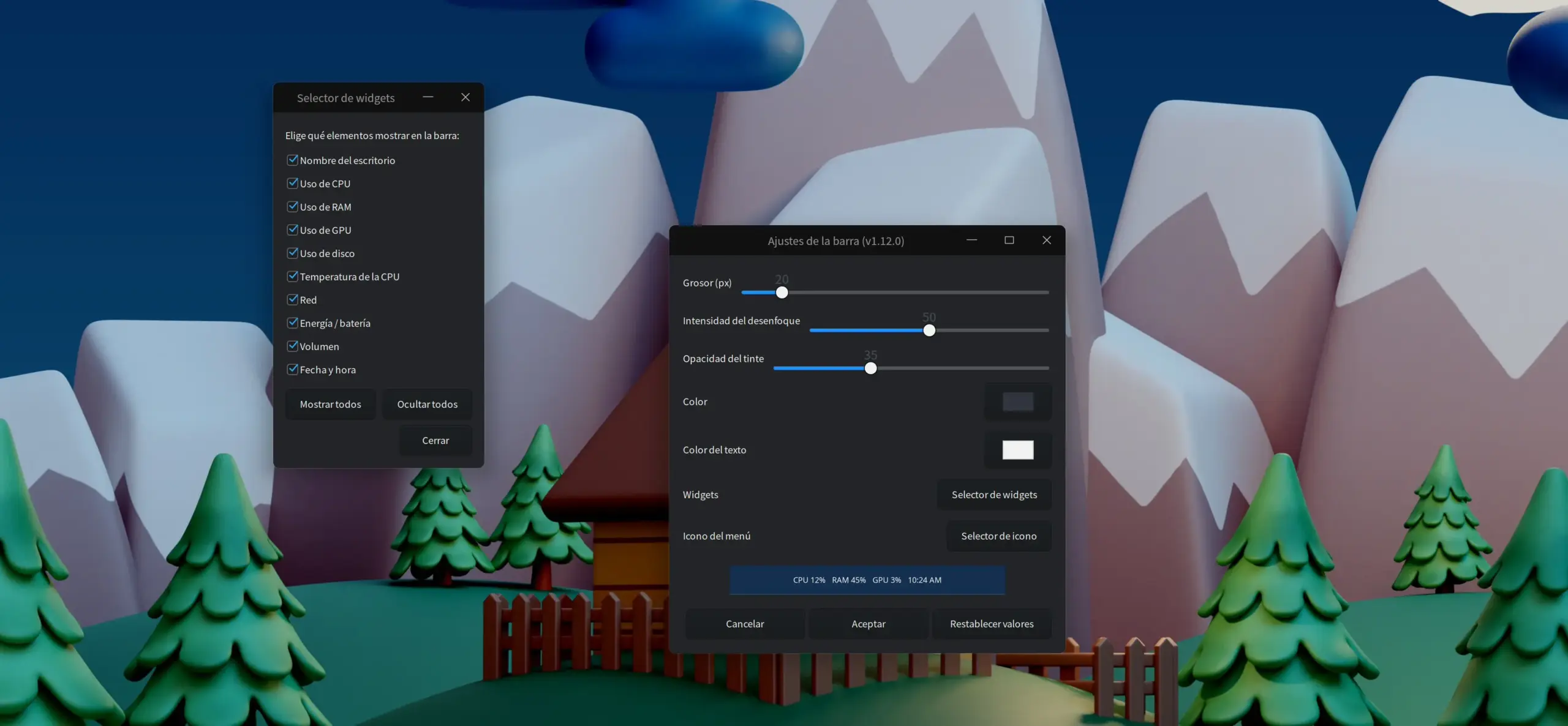
Here is a rundown of the main configuration features in Deepin Topbar Widgets. The app will continue to receive updates and new options based on user feedback and necessity:
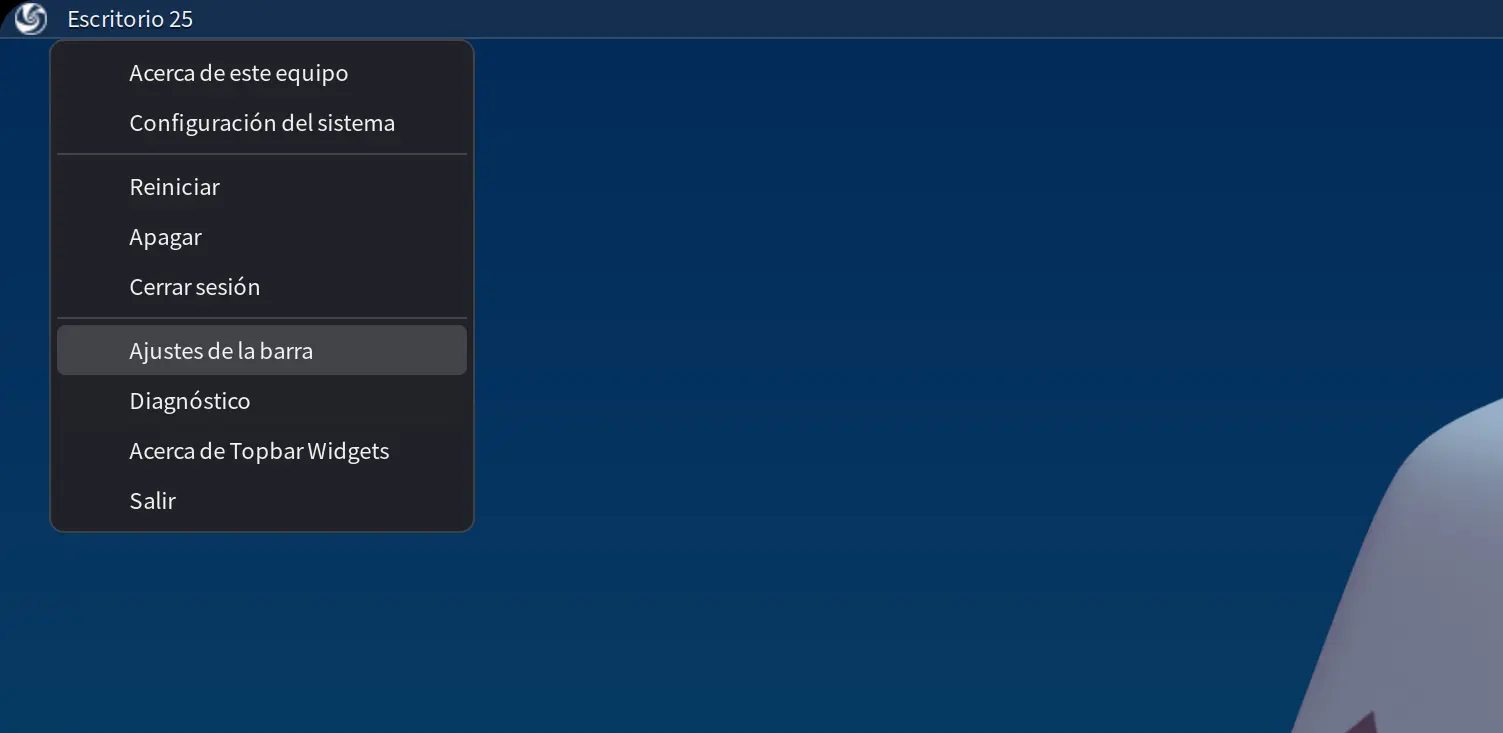
From the top-left menu, you can quickly access core system features and the Control Center, as well as power options to restart, shut down, or log out. You can also launch a built-in diagnostic tool that displays detailed configuration data and debugging information.
How to Install Deepin Topbar Widgets
You can install Deepin Topbar Widgets on Deepin through the Deepines Store. It’ll eventually also be available for download from the Software section on this site. Simply search for deepin-topbar-widgets in the store’s search bar to download and install it. If you already have the Deepines Store repository set up, you can also install it via the terminal by running:
sudo apt update && sudo apt install deepin-topbar-widgetsKnown Issue:
If you keep icons on your desktop, any icon placed near the top of the screen may sit right up against or partially underneath the top bar, depending on how thick you make the bar. So far, this is the only known issue. The easiest workaround is to keep the top bar relatively slim or avoid placing desktop icons along the very top edge. This happens because Deepin currently doesn’t allow freeform icon placement, nor does it expect a static bar at the top of the screen to push the desktop grid downward. Fortunately, this quirk is purely cosmetic and doesn’t affect performance or functionality.
Latest Changes:
Final Thoughts
Deepin Topbar Widgets is a lightweight, practical top bar that not only keeps a constant eye on your system resources through clean mini-widgets, but also puts essential system shortcuts right at your fingertips.
What other indicators would you like to see added to the bar? Do you have any ideas or suggestions for improvement, or have you run into any bugs? Feel free to share your thoughts in the comments below!

| Let's keep the conversation clean please; read the discussion rules.