

Force Flatpak App Updates
Although most Linux users typically keep their systems up to date by performing updates via the terminal or other methods, it is important to note that these updates are generally limited to the default package manager.
For instance, in the case of most Debian-based distributions, updating the system usually involves updating all APT-based packages—either through the terminal or via the distro’s control panel’s update tab.
However, other packaging formats—such as Snap and, notably, Flatpak (the focus of this post)—aren’t included in updates done through the methods above. Snap applications update automatically, whereas Flatpak applications do not.
So, how do you update Flatpak packages in most Linux distros? Well, we can easily update all installed and updatable Flatpak packages in our system using the following command:
flatpak updateThat is quite straightforward. But let’s move on to discuss a few more things regarding Flatpak updates, such as updating all Flatpak packages or just specific ones.
Updating All Your Flatpaks
We use the terminal to update Flatpak packages. Let’s start with the most practical approach—the one you should start with, too. Update all outdated Flatpak packages. Updating the entire catalog of existing Flatpak packages is quite easy. Enter the given command, and you will get a list of outdated packages:
flatpak update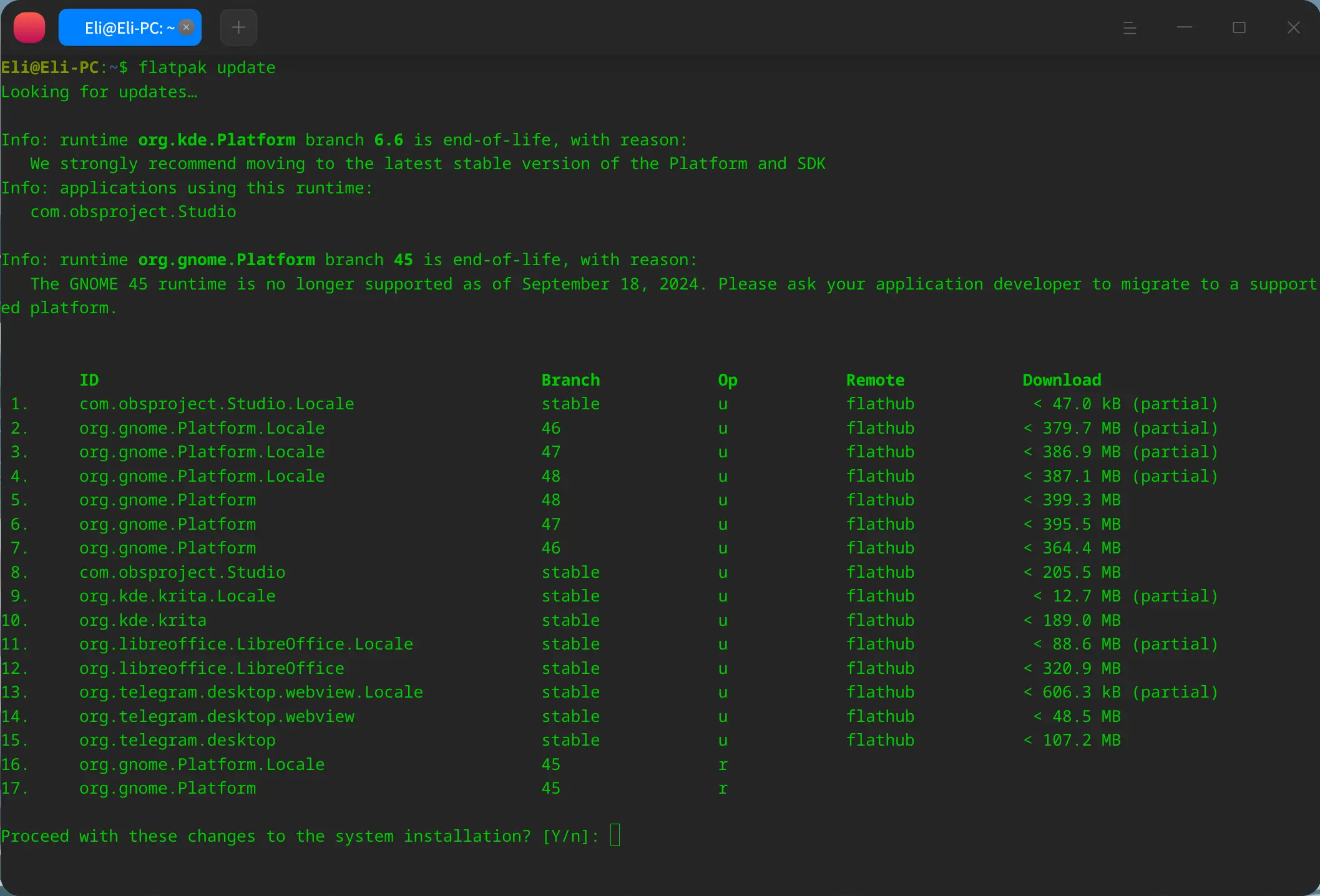
Simply enter “Y” and press the “Enter” key; this will handle all the updates. After running the command, you will see a list of all the applications that were updated, as shown in the following screenshot:
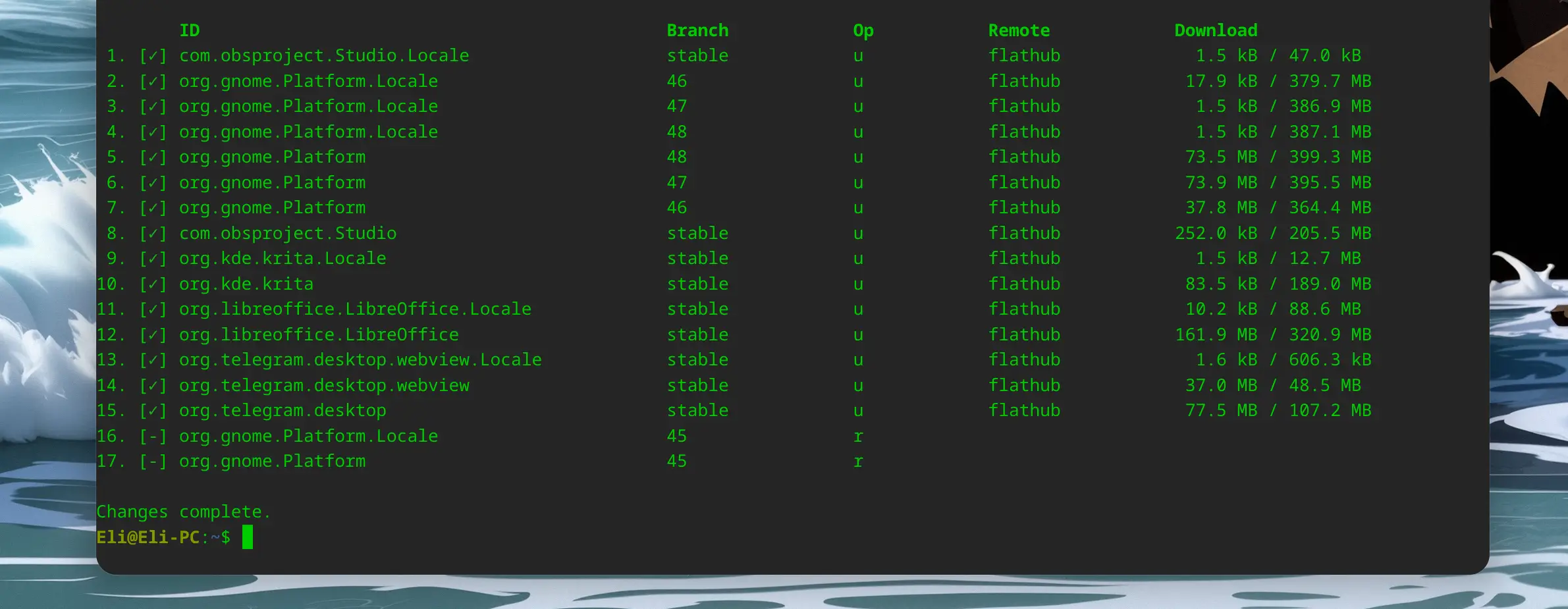
Updating Specific Flatpak Packages
To update specific packages, you will need the list of packages that can be updated. Use the same command you saw earlier —flatpak update— but add an extra parameter specifying the name of the package you want to update.
Using the list of outdated packages (which we already learned how to retrieve), identify the exact name of the package you wish to update. Then, enter the package name into the command line as follows:
flatpak update package_nameFor example, if you want to update Telegram, the following command will perform the exact update we want:
flatpak update org.telegram.desktopIf you are unsure of the specific Flatpak package name you want to update, you can use the flatpak list command to view a list of all the Flatpak apps installed on your system.
flatpak listAs shown in the screenshot below, running the previous command will provide a complete list of everything installed in Flatpak format, allowing you to use the exact application name as it appears in the list:
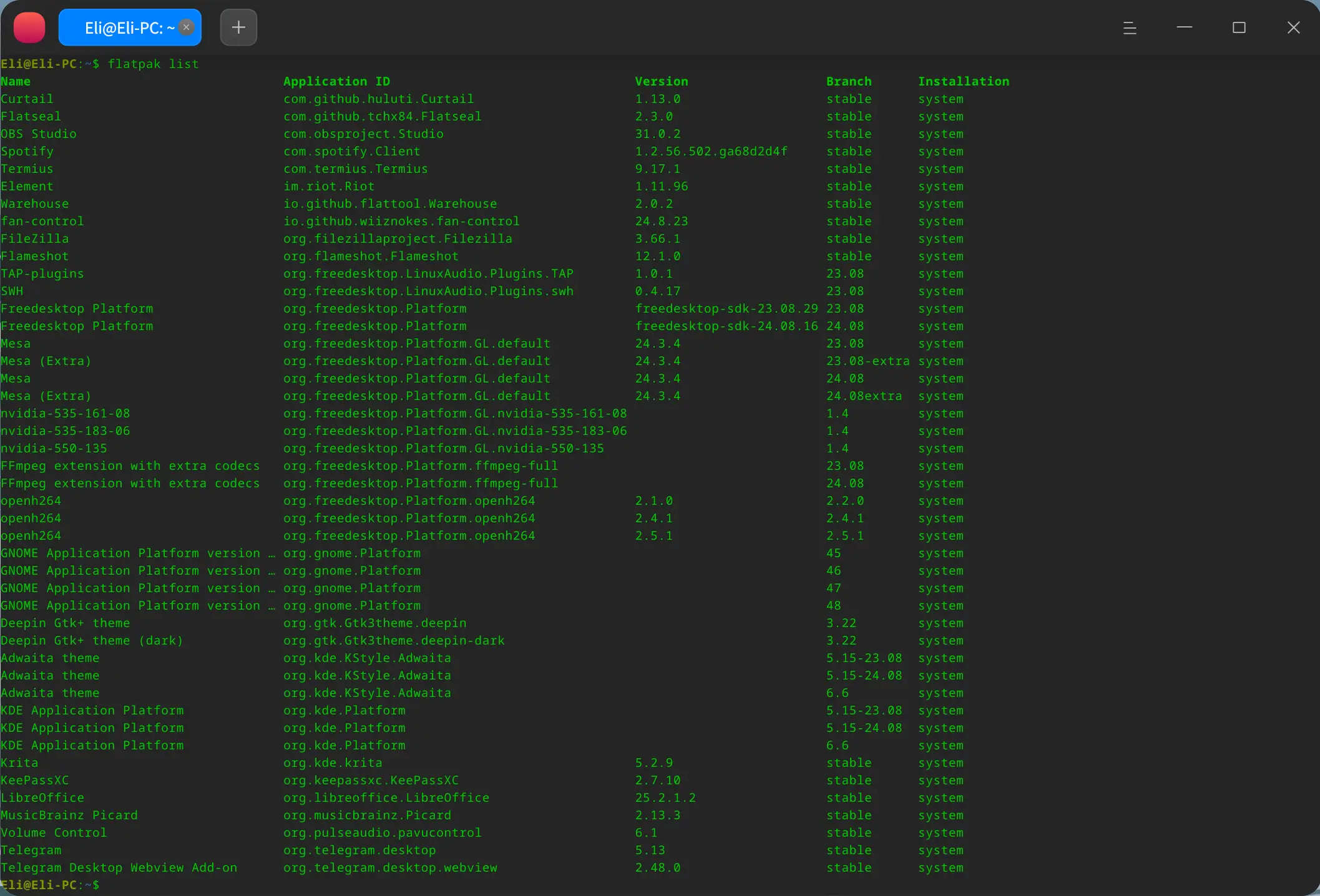
In other words, to update the Telegram application, for example, you wouldn’t type, but rather flatpak update org.telegram.desktop knowing the exact name is important to successfully force the update. That’s it! If you followed the steps correctly, all your Flatpak applications should now be updated to their latest versions.
Final Thoughts
Flatpak applications can run on any Linux distribution and offer backward compatibility. This means you do not have to worry about applications failing to work if you upgrade your distribution to a newer version that is not officially supported by the application.
Additionally, you do not need to worry about an update introducing incorrect dependencies to the system, as Flatpak operates independently and bundles all its dependencies within itself. However, keeping them updated is certainly an important factor to consider when you have them installed on your system.